

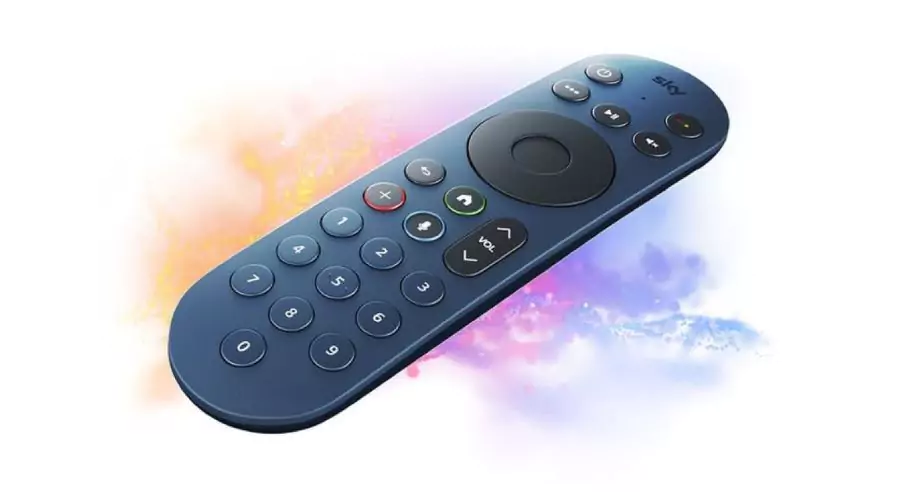
A reliable remote control is crucial for seamless viewing with today’s advanced entertainment technology. The innovative Sky Glass remote revolutionizes controlling your TV and streaming in an intuitive, minimalist design. This guide explores the Sky Glass remote’s capabilities and features, plus troubleshooting tips for an optimized user experience. With just a few buttons, the sleek remote enables intuitive control over your television and streaming content alike. Its Bluetooth connectivity and motion sensors allow for smooth, accurate navigation. With this modern remote, operating your Sky Glass TV is easier than ever.





Pairing Your Sky Remote with Your TV
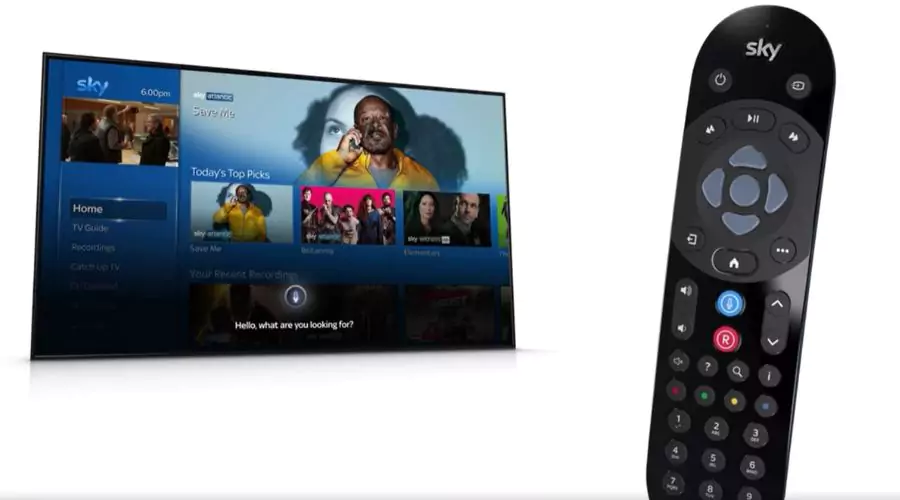
To enhance functionality and control, you can pair your Sky remote with your TV. Follow these simple steps
- To pair your Sky remote, press and hold the 1 and 3 buttons simultaneously for 3 seconds. This initiates the pairing mode.
- When the TV displays a connected message, select Continue to complete the process. This confirms the remote is linked to your Sky Glass.
If the pairing process is unsuccessful, try the following steps
- When it fails to pair, press and hold 7 and 9 together for 3 seconds. This resets the connectivity.
- Next, press and hold 1 and 3 together again for 3 seconds to re-initiate pairing. Trying this alternative button combination can help connect the remote.
Understanding Your Sky Glass Remote
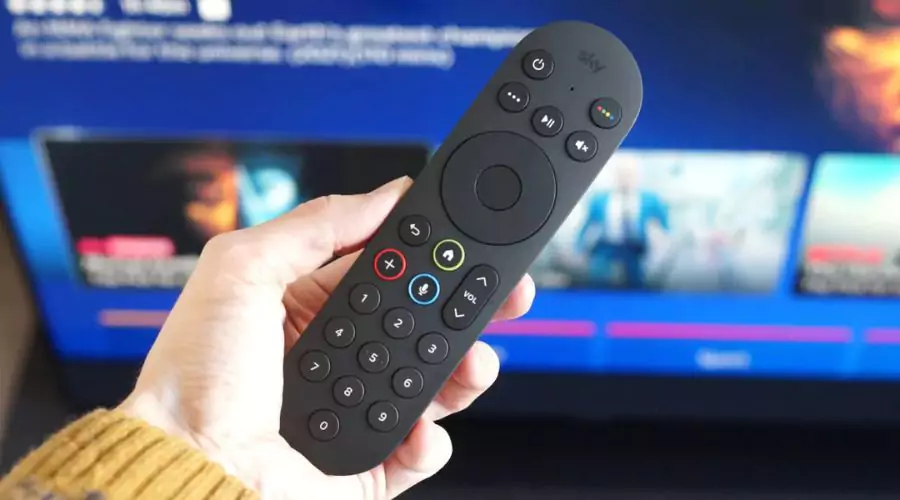
The Sky Glass remote control is designed with user convenience in mind, offering a range of features to simplify navigation and enhance interaction with your television and streaming services. Let’s explore the various buttons and functionalities.
-
Power / Standby button
Easily turn your Sky Glass TV or Sky Stream puck on/off or switch to standby mode for quick access.
-
Coloured dots (red, green, yellow, and blue dots) button
Access additional features and options when prompted on-screen, providing enhanced interactivity.
-
Options menu (three dots) button
Manage settings efficiently, including text search, subtitles, audio description, viewing mode, night mode, and speech quality enhancement.
-
Microphone
Utilize hands-free voice control for seamless interaction with Sky Glass, enabling commands such as searching for content or adjusting settings.
-
Play/pause button
Pause or resume playback with ease, offering greater flexibility during viewing sessions.
-
Mute button
Instantly mute audio output, providing convenience when needed.
-
Navigation buttons (up, down, left, right)
Effortlessly navigate through menus, channels, and playback controls for a smooth user experience.
-
Select button
Confirm selections or choose highlighted options, simplifying menu navigation and selection processes.
-
Back button
Return to the previous screen or menu, ensuring intuitive navigation and easy correction of actions.
-
Home button
Access the home screen, TV guide, playlist, and TV apps quickly, streamlining navigation within the Sky Glass interface.
-
+ Playlist button
Add content to your playlist for later viewing, offering a convenient way to organize your entertainment queue.
-
Voice button
Activate voice control functionality by pressing and holding the button, enabling vocal commands for various actions such as channel navigation or playback control.
-
Volume button
Adjust the audio output level effortlessly, ensuring optimal sound quality during viewing sessions.
-
Number keypad
Input channel numbers directly using the keypad, facilitating quick channel selection.
Voice Control and Live Playback
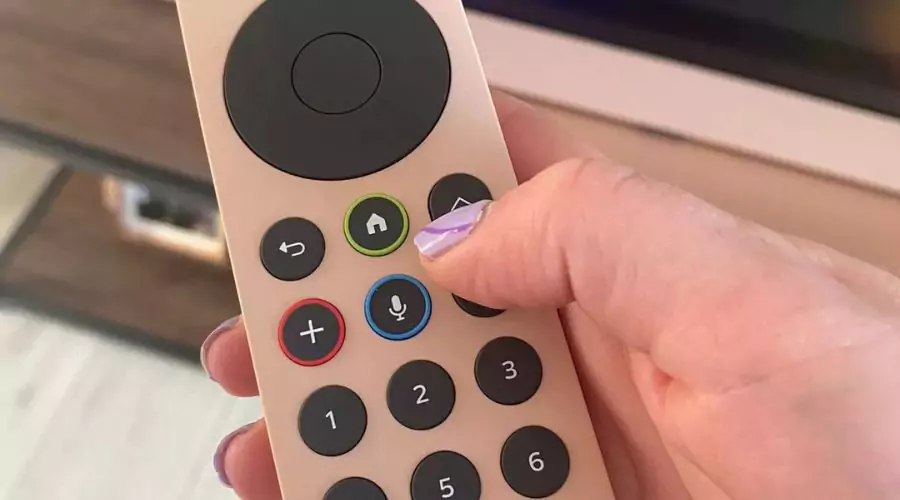
Sky Glass remote offers advanced voice control capabilities, allowing you to perform various actions hands-free. The Sky Glass remote allows convenient voice controls like “Go to Sky Atlantic” or “Rewind 30 seconds” for easy accessibility while viewing. Live pause and rewind functionalities let you halt and replay live TV to catch important moments, granting flexibility to manage your viewing. With its built-in microphone picking up commands from anywhere in the room, the remote enables clear voice control for an optimized viewing experience. This hands-free control gives you quick access to content and navigation without constantly handling the remote. With intuitive voice commands and convenient playback features, the Sky Glass remote revolutionizes the TV viewing experience.
Troubleshooting Tips
Here are the troubleshooting tips to resolve your common issues
- Check that batteries are inserted properly and replace them if needed for optimal performance. Dead or incorrectly inserted batteries are a common cause of remote issues.
- If the remote is unresponsive, attempt to pair it again with the TV using the pairing steps. Re-pairing can often resolve connectivity issues between the remote and Sky Glass device.
- For voice control issues, verify the microphone is clear and try speaking clearly and directly into the remote. Check for obstructions covering the microphone hole on the remote before troubleshooting further.
- Restarting the Sky Glass device and remote can resolve minor problems by refreshing settings and connections. A simple restart takes just a few minutes and may get things working again without additional troubleshooting.
Conclusion
The Sky Glass remote elevates TV and streaming control with its sophisticated features, seamless integration, and easy-to-use interface. You can maximize your viewing experience by making the most of the remote’s features and troubleshooting it when necessary. With its revolutionary approach, the Sky Glass remote enables you to interact with your entertainment like never before. From intuitive navigation to advanced voice control, the remote streamlines operating your Sky Glass system. By fully utilizing the remote’s capabilities and learning troubleshooting techniques, you can optimize your TV viewing experience. Mastering this cutting-edge remote allows you to truly elevate and maximize your TV enjoyment.
For more information, visit Xprrtupdates!